
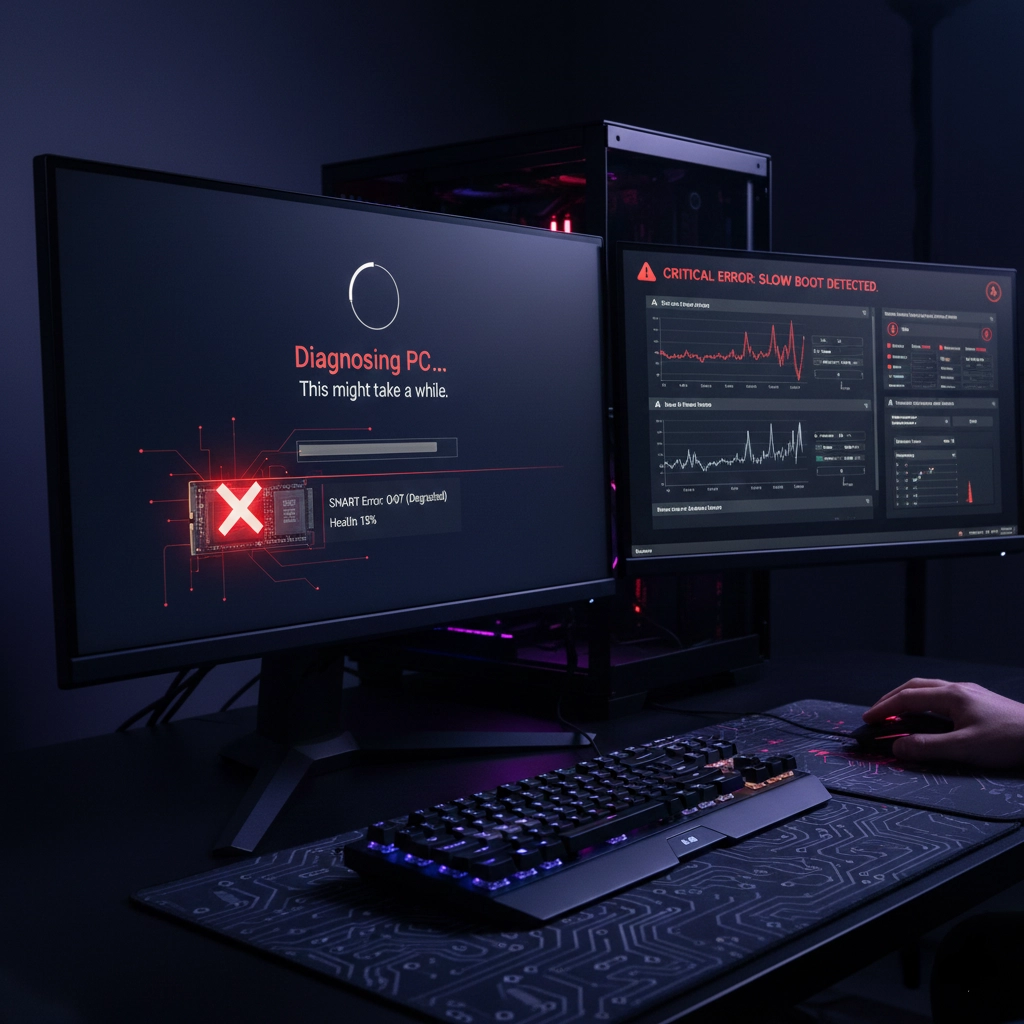
Understanding Slow Boot Times: The SSD Connection
If your PC is taking 30 minutes or more to boot, the problem is often related to storage issues, particularly with your SSD or hard drive. While modern SSDs typically boot Windows in 10-30 seconds, various problems can cause dramatically extended boot times. Understanding the root causes and implementing proper solutions can restore your system's performance and get you back to normal boot speeds.
SSD-related boot problems can manifest in several ways: extremely slow boot times, system hangs during startup, boot loops, or complete failure to boot. These issues often stem from drive health degradation, firmware problems, connection issues, or software conflicts. Identifying the specific cause is crucial for implementing the correct solution.
Common Symptoms of SSD Boot Problems
If you're experiencing boot times of 30 minutes or more, your system may be stuck in disk checking, experiencing drive read errors, or struggling with corrupted system files. Other symptoms include system freezing during boot, error messages about disk problems, or the system repeatedly attempting to repair itself during startup.
Diagnosing SSD Problems: Step-by-Step Troubleshooting
Before attempting fixes, it's essential to properly diagnose the issue. Here's a systematic approach to identifying SSD-related boot problems:
Step 1: Check Drive Health
Use built-in Windows tools or third-party software to check your SSD's health status. Open Command Prompt as Administrator and run wmic diskdrive get status to check drive status. For detailed health information, use tools like CrystalDiskInfo, which provides SMART data and health percentages.
Step 2: Check Disk Errors
Run Windows' built-in disk checking tool: chkdsk C: /f /r (replace C: with your system drive letter). This will check for file system errors and bad sectors. Note that this process can take several hours on large drives, so plan accordingly.
Step 3: Check Drive Connections
Physical connection issues can cause boot problems. Ensure SATA or NVMe connections are secure. For SATA SSDs, check both the data and power cables. For NVMe drives, ensure the drive is properly seated in the M.2 slot. Loose connections can cause intermittent boot failures and slow performance.
Step 4: Check System Files
Corrupted system files can cause boot delays. Run System File Checker: sfc /scannow in Administrator Command Prompt. This tool scans and repairs corrupted Windows system files that might be causing boot issues.
Diagnostic Tools Comparison
| Product | Feature |
|---|---|
| Built-in Windows Tools | Disk Management: Visual drive info |
| Third-Party Tools | SSD Life: Health tracking |
| Health Indicators | Temperature: Overheating |
| Warning Signs | Boot failures: Critical issue |
Common SSD Boot Problems and Solutions
Here are the most common SSD-related boot issues and their solutions:
Problem 1: Drive Health Degradation
SSDs have a limited number of write cycles, and as they age, performance can degrade significantly. When an SSD reaches the end of its lifespan, it may experience slow read/write speeds, causing extended boot times.
Solution: Check your SSD's health using CrystalDiskInfo or similar tools. If health is below 80% or you're seeing numerous reallocated sectors, consider backing up your data and replacing the drive. For immediate relief, try updating the SSD firmware, which can sometimes improve performance on older drives.
Problem 2: Firmware Issues
Outdated or corrupted SSD firmware can cause boot problems, slow performance, and system instability. Firmware updates often include performance improvements and bug fixes.
Solution: Visit your SSD manufacturer's website and download the latest firmware. Use their official firmware update tool to apply the update. Ensure your system is stable and you have backups before updating firmware, as failed updates can render the drive unusable.
Problem 3: Connection Problems
Loose SATA cables, faulty M.2 slots, or power supply issues can cause intermittent boot problems and slow performance. The system may take longer to detect the drive or may fail to boot entirely.
Solution: For SATA SSDs, reseat both the data and power cables. Try a different SATA port on your motherboard. For NVMe drives, remove and reseat the drive in the M.2 slot, ensuring it's properly secured. Check motherboard documentation to ensure you're using the correct M.2 slot (some support only SATA or only NVMe).
Problem 4: File System Corruption
Corrupted file systems can cause the system to spend excessive time attempting to repair itself during boot, resulting in 30+ minute boot times. This often happens after improper shutdowns, power failures, or system crashes.
Solution: Run chkdsk C: /f /r from Command Prompt or use Windows' built-in disk repair tools. If the file system is severely corrupted, you may need to back up data and reformat the drive, then reinstall Windows.
Problem 5: Overheating
SSDs, especially NVMe drives, can overheat during intensive operations, causing thermal throttling that dramatically reduces performance. This can make boot times extremely slow as the drive reduces speed to protect itself.
Solution: Check SSD temperatures using monitoring software. Ensure adequate airflow in your case. For NVMe drives, consider adding a heatsink if your motherboard doesn't include one. High-end NVMe drives often come with heatsinks, and adding one can significantly improve thermal performance.
Problem 6: BIOS/UEFI Settings
Incorrect BIOS settings can cause slow boot times. Issues like wrong SATA mode, disabled fast boot, or incorrect boot order can all contribute to extended startup times.
Solution: Enter BIOS/UEFI settings and ensure SATA mode is set to AHCI (not IDE or RAID unless you're using those). Enable Fast Boot if available. Ensure your SSD is set as the primary boot device. Update your motherboard's BIOS to the latest version, as newer versions often include SSD compatibility improvements.
Preventive Measures: Maintaining SSD Health
Preventing SSD problems is easier than fixing them. Here are key practices to maintain your SSD's health and performance:
SSD Maintenance Best Practices
| Product | Feature |
|---|---|
| Regular Maintenance | Monitor temperatures |
| Protection Measures | Maintain free space |
| Thermal Management | Clean dust regularly |
| Data Management | Plan for replacement |
TRIM is a crucial feature that helps maintain SSD performance by allowing the operating system to inform the SSD which data blocks are no longer in use. Ensure TRIM is enabled by running fsutil behavior query DisableDeleteNotify in Command Prompt. If it returns 0, TRIM is enabled. If it returns 1, enable it with fsutil behavior set DisableDeleteNotify 0.
When to Replace Your SSD: Replacement Indicators
Sometimes, the best solution is to replace a failing SSD. Here are clear indicators that replacement is necessary:
Critical Replacement Signs
Health Below 50%: If your SSD's health has dropped below 50%, it's time to start planning for replacement. While the drive may still function, performance will continue to degrade, and failure becomes increasingly likely.
Frequent Errors: If you're seeing consistent read/write errors, bad sectors, or system crashes related to storage, the drive is likely failing and should be replaced immediately.
Extremely Slow Performance: If boot times remain slow after trying all troubleshooting steps, and the drive shows signs of degradation, replacement is often more cost-effective than continued troubleshooting.
Age and Usage: SSDs typically last 5-7 years under normal use. If your drive is older and showing performance issues, replacement is recommended even if health appears acceptable.
When replacing an SSD, ensure you have complete backups of all important data. Use disk cloning software like Macrium Reflect, Clonezilla, or manufacturer-specific tools to transfer your system to the new drive. This preserves your Windows installation, programs, and files without needing to reinstall everything.
Frequently Asked Questions
Why is my PC taking 30 minutes to boot?
Extended boot times of 30 minutes or more are typically caused by SSD or storage drive problems. Common causes include drive health degradation, file system corruption, connection issues, firmware problems, or the system being stuck in disk repair mode. Start by checking your drive's health using tools like CrystalDiskInfo, then run disk checking utilities to identify the specific issue.
How do I check if my SSD is failing?
Use tools like CrystalDiskInfo to check SMART data and health percentage. Look for health percentages below 80%, increasing bad sector counts, or error messages. Also monitor for symptoms like extremely slow performance, system crashes, or boot failures. If health is critically low or you're seeing consistent errors, the drive is likely failing and should be replaced.
Can I fix a slow-booting SSD without replacing it?
Many SSD boot problems can be fixed without replacement. Try updating firmware, running disk repair tools (chkdsk), checking and fixing file system errors, ensuring proper connections, updating drivers, and checking BIOS settings. However, if the drive's health is critically low or physical damage is present, replacement may be necessary.
How long should an SSD last?
Modern SSDs typically last 5-7 years under normal use, though this varies based on usage patterns, write cycles, and drive quality. High-end SSDs with better controllers and NAND flash can last longer. Monitor your drive's health regularly and plan for replacement when health drops below 80% or you notice performance degradation.
What's the difference between SATA and NVMe SSD boot problems?
SATA SSDs connect via cables and can have connection issues with loose cables or ports. NVMe drives connect directly to the motherboard via M.2 slots and may have seating issues or thermal problems. NVMe drives are generally faster but can overheat more easily. Both can experience firmware, health, and file system issues similarly.
Should I defragment my SSD?
No, you should never defragment an SSD. Defragmentation is designed for mechanical hard drives and can actually reduce SSD lifespan by causing unnecessary write cycles. SSDs don't benefit from defragmentation because they can access data from any location instantly. Windows 10 and 11 automatically disable defragmentation for SSDs, but ensure it's disabled if using older systems.
How can I prevent SSD boot problems?
Prevent SSD problems by keeping firmware updated, maintaining 10-20% free space, enabling TRIM, ensuring proper shutdowns, monitoring drive health regularly, maintaining adequate cooling, and avoiding excessive write operations. Regular backups are also crucial, as they protect your data if the drive fails.
Can overheating cause slow boot times?
Yes, overheating can cause SSDs to thermal throttle, dramatically reducing performance and causing slow boot times. NVMe drives are particularly susceptible to overheating. Ensure adequate case airflow, consider adding heatsinks to NVMe drives, and monitor temperatures. If temperatures consistently exceed 70°C under load, improve cooling immediately.
Tags

Hardware enthusiast and PC build advisor. Alex tests CPUs, GPUs, and memory to help gamers and creators make smarter upgrade decisions.
Follow on Reddit