
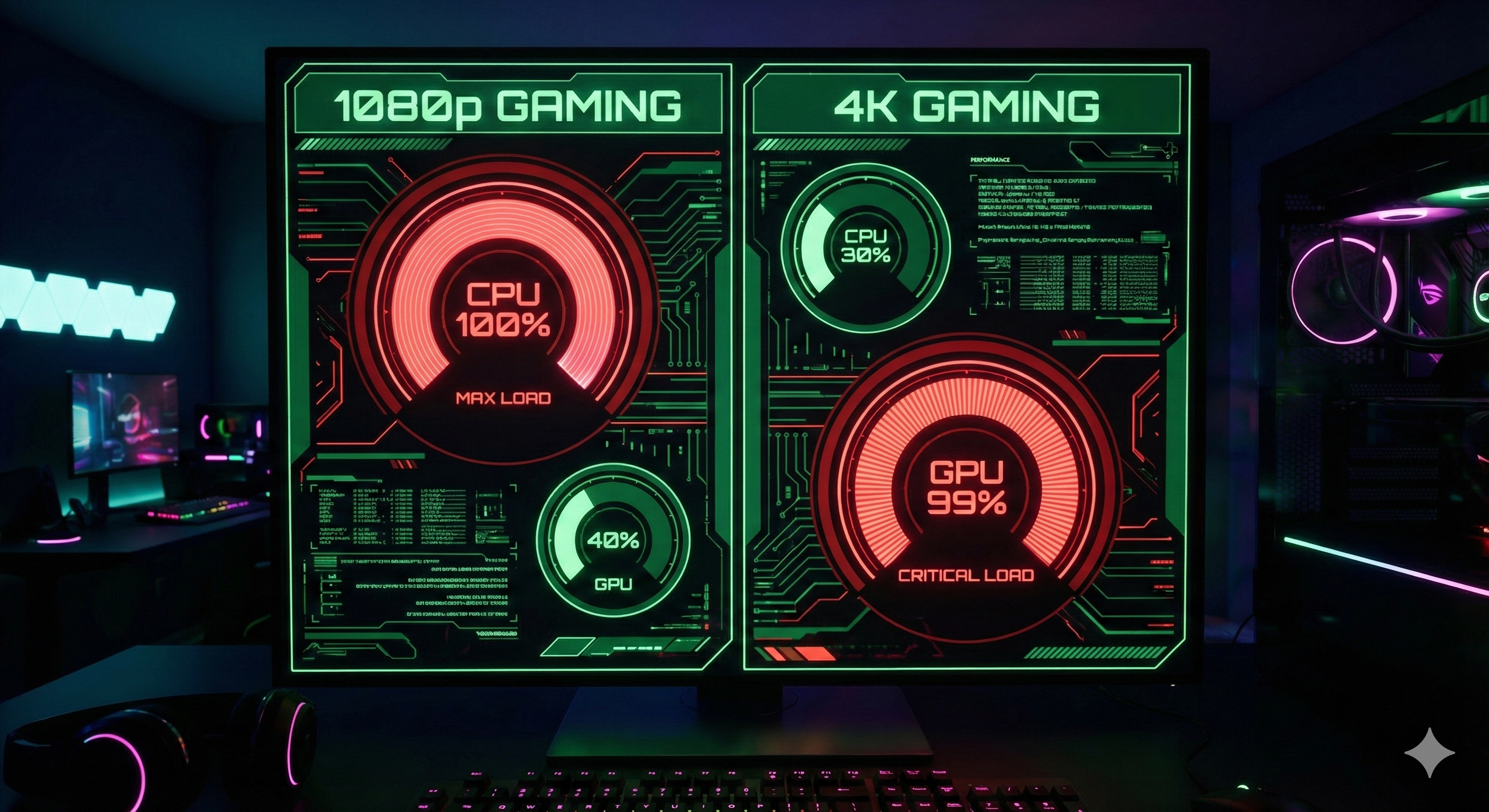
You just bought the ultimate gaming PC. You secured an NVIDIA RTX 4090 and paired it with a high-end processor. You boot up Call of Duty: Warzone, expecting to see frame rates that break the sound barrier.
But something is wrong.
Your frame rate is unstable. Even worse, when you check your overlay, your expensive graphics card is only running at 40% usage. You aren't getting the performance you paid for.
This is the "High-End PC Paradox." Most gamers assume that lowering the resolution to 1080p will always skyrocket their FPS. In reality, playing at 1080p with a powerful card often hurts performance more than it helps.
Here is why your monitor might be the reason your system is underperforming.
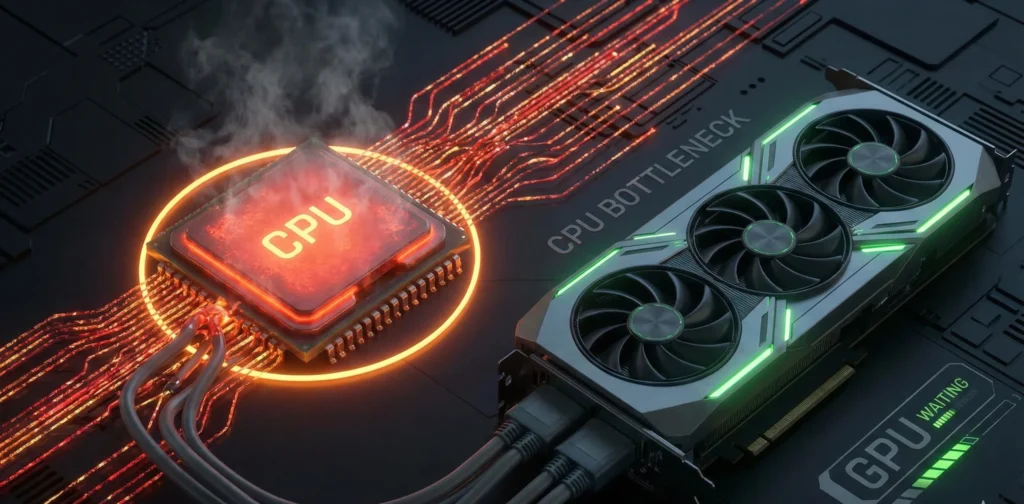
3D render of a computer processor (CPU) glowing red hot
The Basics: The Manager and The Artist
To understand why this happens, you need to know how your computer draws a frame. It is a team effort between two major components.
The CPU (The Manager) Your processor runs the game engine. It calculates physics, tracks player positions, handles artificial intelligence, and processes inputs. Once it figures out what the scene looks like, it sends a list of instructions—called "draw calls"—to the graphics card.
The GPU (The Artist) The graphics card takes those instructions and paints the pixels on your screen.
Here is the critical rule: The CPU does roughly the same amount of work whether you play at 720p or 4K. It still has to calculate the same physics and the same enemy movements regardless of how sharp the image looks.
The GPU, however, has a workload that changes drastically. At 1080p, it paints about 2 million pixels. At 4K, it paints over 8 million pixels.
The 1080p Scenario: Why the CPU Chokes
When you use a monster card like an RTX 4090 at a low resolution like 1080p, the GPU is incredibly fast. It can finish painting a frame in just a few milliseconds.
The GPU finishes its job instantly and screams at the CPU: "Okay, I'm done! Give me the next frame!"
But the CPU has a hard limit. It takes a fixed amount of time to calculate physics and game logic. If the CPU needs 5 milliseconds to prepare a frame, but the GPU only needs 2 milliseconds to draw it, the GPU has to wait.
The graphics card sits idle for 3 milliseconds every frame, doing absolutely nothing. This is a CPU Bottleneck. Your processor is running as fast as it physically can, but it cannot feed data fast enough to keep the graphics card busy.
The 4K Scenario: Why the Bottleneck Vanishes
Now, imagine you switch your monitor to 4K.
Suddenly, the GPU has to do four times the work. Instead of taking 2 milliseconds to draw a frame, it now takes 8 milliseconds.
This completely changes the dynamic. The CPU still takes its standard 5 milliseconds to prepare the game logic. But now, by the time the CPU is ready with the next frame, the GPU is still busy painting the previous one.
The pressure shifts off the processor. The graphics card is now the limiting factor, running at 99% or 100% usage.
This is actually what you want. When your GPU usage is at 100%, it means you are getting every single frame your expensive card is capable of generating. You are utilizing the full value of your purchase.
Case Study: RTX 4090 & Intel Core i9-14900K
Let's look at real-world data using our Ultimate Bottleneck Calculator. We tested a top-tier configuration to see how resolution changes the bottleneck percentage.
Test A: 1080p Resolution
-
Hardware: Intel Core i9-14900K+ RTX 4090
-
Result: The bottleneck is significant. In CPU-intensive titles, the RTX 4090 sits around 50-60% usage. The frame rate is high, but unstable, with frequent stutters.
Test B: 4K Resolution
-
Hardware: Same Configuration.
-
Result: The bottleneck drops to near 0%. The RTX 4090 usage climbs to 98%. The gameplay is smoother because the frame pacing is consistent.
Does Game Type Matter?
Not all games rely on the processor equally. Understanding which games are "CPU-Bound" helps you predict where you will have issues.
CPU-Bound Games (The 1080p Killers) These games require heavy calculations for physics, high player counts, or complex AI. Playing these at 1080p with a high-end card almost guarantees a bottleneck.
-
Valorant / CS2 (High frame rates demand fast CPU instructions)
-
Call of Duty: Warzone (Massive map, many players)
-
Civilization VI (Heavy AI calculations)
GPU-Bound Games These games focus on lighting, textures, and ray tracing. They put so much load on the graphics card that the CPU rarely struggles to keep up.
-
Cyberpunk 2077 (With Path Tracing)
-
Alan Wake 2
-
Black Myth: Wukong
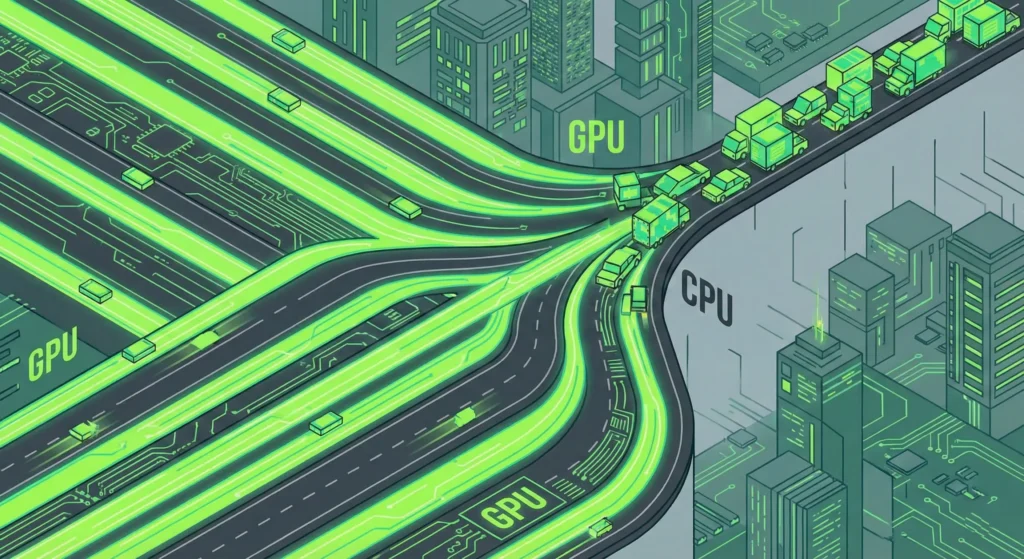
Isometric digital art of a data highway
How to Fix a 1080p Bottleneck (Without Buying New Parts)
If you are stuck with a 1080p monitor and a powerful GPU, you don't necessarily need to buy a 4K screen today. You can use software tricks to rebalance the load.
1. Enable DSR (Dynamic Super Resolution) NVIDIA (and AMD's VSR) allows your graphics card to render the game internally at 4K and then shrink it down to fit your 1080p screen.
-
Why it works: It artificially increases the GPU's workload, forcing it to work harder and slowing it down enough to match your CPU's pace.
-
Bonus: The image quality will look much sharper than native 1080p.
2. Cap Your Frame Rate If your CPU can only consistently prepare 140 frames per second, but your GPU tries to push 200, you get stuttering. Go into the game settings and cap your FPS to a number your CPU can handle (e.g., 144 FPS). This creates a smoother experience than letting the framerate jump up and down wildly.
3. Maximize Graphics Settings Turn everything up. Set shadows to "Ultra," enable Ray Tracing, and maximize texture quality. The goal is to give the GPU more work to do so it stops waiting on the processor.
Conclusion
A lower resolution does not always equal better performance. If you pair a modern powerhouse card with a 1080p monitor, you are likely leaving performance on the table and causing your processor to struggle.
Ideally, you want your graphics card to do the heavy lifting. By moving to 1440p or 4K, or by using upscaling tech like DSR, you can eliminate stutters and get the smooth experience you paid for.
Is your monitor holding your PC back? Don't guess. Select your exact hardware in our Ultimate Bottleneck Calculator now to see if your resolution is causing a performance drag.
Tags
Hardware enthusiast and PC build advisor. Alex tests CPUs, GPUs, and memory to help gamers and creators make smarter upgrade decisions.
Follow on Reddit