
The Hidden Performance Killers
Your CPU might be holding back your system in ways you don't realize. While obvious bottlenecks like an outdated CPU or insufficient cores are easy to spot, there are several silent bottlenecks that can significantly impact performance without showing obvious symptoms. These hidden limiters can reduce your system's potential by 10-30% without you even knowing it.
In this comprehensive guide, we'll identify five common silent CPU bottlenecks, explain how to detect them, and provide solutions to eliminate them. Whether you're experiencing unexplained frame drops, stuttering, or just feel your system isn't performing as it should, one of these bottlenecks might be the culprit.
"The most frustrating performance issues are the ones you can't see. Silent bottlenecks hide in plain sight, affecting your system's performance without obvious warning signs."
— PC Performance Expert, 2025Let's dive into these hidden performance killers and learn how to identify and fix them.
1. Thermal Throttling: The Silent Performance Killer
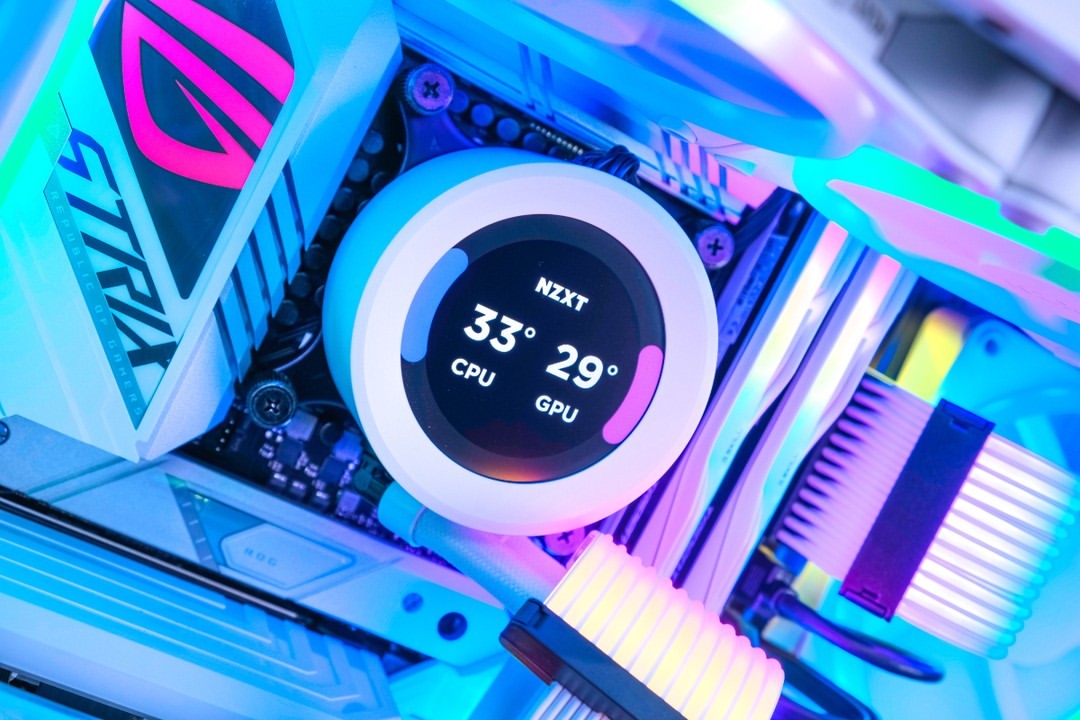
One of the most common yet overlooked CPU bottlenecks is thermal throttling. When your CPU gets too hot, it automatically reduces its clock speed to prevent damage. This happens silently in the background, and you might not notice until you check temperatures or benchmark your system.
Thermal Throttling Impact
Symptoms
- Gradual performance degradation
- Lower FPS after extended gaming
- System feels slower over time
- No obvious error messages
Solutions
- Improve case airflow
- Clean dust from heatsinks
- Replace thermal paste
- Upgrade CPU cooler
Most CPUs start throttling around 90-95°C, but performance can degrade significantly even at 80-85°C. Use monitoring software like HWiNFO64 or Core Temp to check your CPU temperatures under load. If you see temperatures consistently above 80°C, thermal throttling is likely affecting your performance.
Quick Fix: Check Your Temps
Run a stress test (like Prime95 or AIDA64) while monitoring CPU temperatures. If temps exceed 85°C, you're likely experiencing thermal throttling. Solutions include improving case airflow, cleaning dust buildup, replacing thermal paste, or upgrading your CPU cooler.
2. Power Limit Throttling (PL1/PL2)
Modern CPUs have power limits (PL1 for sustained power, PL2 for short bursts) that can silently cap performance. If your motherboard or BIOS settings are too conservative, your CPU might never reach its full potential, even with adequate cooling.
| CPU | PL1 (Sustained) | PL2 (Boost) | Common Issue |
|---|---|---|---|
| Core i9-13900K | 125W | 253W | Motherboard limits |
| Ryzen 9 7950X | 170W | 230W | BIOS settings |
| Core i7-13700K | 125W | 253W | PSU limitations |
| Ryzen 7 7800X3D | 120W | 162W | Cooling constraints |
Check your BIOS settings for power limits. Many motherboards default to conservative power limits that prevent your CPU from reaching its maximum performance. Enabling "Unlimited Power" or setting higher PL1/PL2 limits can unlock significant performance, but ensure your cooling and PSU can handle it.
"Power limit throttling is especially common on budget motherboards that can't deliver enough power to high-end CPUs. Check your BIOS—you might be leaving 10-20% performance on the table."
— Hardware Reviewer, 20253. Background Processes & Windows Bloat
Windows and various background applications can consume significant CPU resources without you realizing it. Antivirus scans, Windows Update, indexing services, and telemetry can silently eat up CPU cycles, reducing available resources for your games and applications.
Common CPU Hogs
Antivirus
- Impact: 5-15% CPU
- When: Real-time scanning
- Fix: Schedule scans, exclude game folders
Windows Update
- Impact: 10-30% CPU
- When: Downloading/installing
- Fix: Schedule updates, pause when gaming
Windows Search
- Impact: 5-20% CPU
- When: Indexing files
- Fix: Disable indexing on game drives
Telemetry
- Impact: 2-8% CPU
- When: Always running
- Fix: Disable via Group Policy
Use Task Manager (Ctrl+Shift+Esc) to identify processes consuming CPU resources. Sort by CPU usage and look for processes using more than 5% CPU when idle. Common culprits include Windows Search, Windows Update, antivirus software, and various background services.
4. RAM Speed & Latency Mismatch
While RAM speed doesn't directly bottleneck the CPU, slow RAM or incorrect memory timings can prevent your CPU from performing at its best. This is especially true for AMD Ryzen processors, which are highly sensitive to memory speed and latency.
Performance Impact of RAM Speed on CPU Performance
Many systems run RAM at default speeds (often 2133MHz or 2400MHz) instead of their rated speeds. Enabling XMP (Intel) or DOCP/EXPO (AMD) in BIOS can unlock significant performance. For Ryzen processors, the difference between 2133MHz and 3600MHz RAM can be 10-15% in CPU-bound scenarios.
Quick Check: Is Your RAM Running at Full Speed?
Check Task Manager > Performance > Memory to see your RAM speed. If it's below your RAM's rated speed, enable XMP/DOCP in BIOS. This simple change can boost CPU performance by 5-15% depending on your processor.
5. CPU Affinity & Core Parking
Windows can "park" CPU cores or assign processes to specific cores inefficiently, reducing performance. Core parking is designed to save power but can hurt performance in CPU-intensive tasks. Similarly, incorrect CPU affinity settings can prevent applications from using all available cores.
CPU Affinity Issues
Core Parking
- Problem: Windows parks unused cores
- Impact: Delayed core activation
- Fix: Disable via Registry or Power Plan
- Gain: 3-8% performance
Affinity Issues
- Problem: Apps pinned to few cores
- Impact: Underutilized CPU
- Fix: Reset affinity in Task Manager
- Gain: 5-15% performance
To disable core parking, open PowerShell as Administrator and run: powercfg -setacvalueindex SCHEME_CURRENT SUB_PROCESSOR CPMINCORES 100. This ensures all cores stay active. For CPU affinity, check Task Manager > Details > Right-click process > Set Affinity to ensure all cores are selected.
How to Detect These Bottlenecks
Here's a systematic approach to identifying silent CPU bottlenecks:
- Monitor CPU temperatures: Use HWiNFO64 or Core Temp to check if your CPU is thermal throttling.
- Check power limits: Use HWiNFO64 to monitor PL1/PL2 limits and see if your CPU is hitting power limits.
- Review background processes: Use Task Manager to identify CPU-hungry background processes.
- Verify RAM speed: Check Task Manager or CPU-Z to ensure RAM is running at rated speeds.
- Test CPU performance: Run benchmarks like Cinebench before and after fixes to measure improvements.
Diagnostic Tools
Use HWiNFO64 for comprehensive monitoring, Task Manager for quick checks, CPU-Z for RAM verification, and Cinebench for performance testing. These tools will help you identify which bottleneck is affecting your system.
Conclusion: Unlock Your CPU's Full Potential
Silent CPU bottlenecks can significantly impact your system's performance without obvious symptoms. By identifying and fixing thermal throttling, power limits, background processes, RAM speed issues, and CPU affinity problems, you can unlock 10-30% additional performance without upgrading hardware.
Start Here
Begin by checking CPU temperatures and RAM speed—these are the easiest to fix and often provide the biggest gains. Then investigate power limits and background processes. With these fixes, you'll likely see noticeable improvements in both gaming and productivity workloads.

Share Your Thoughts