
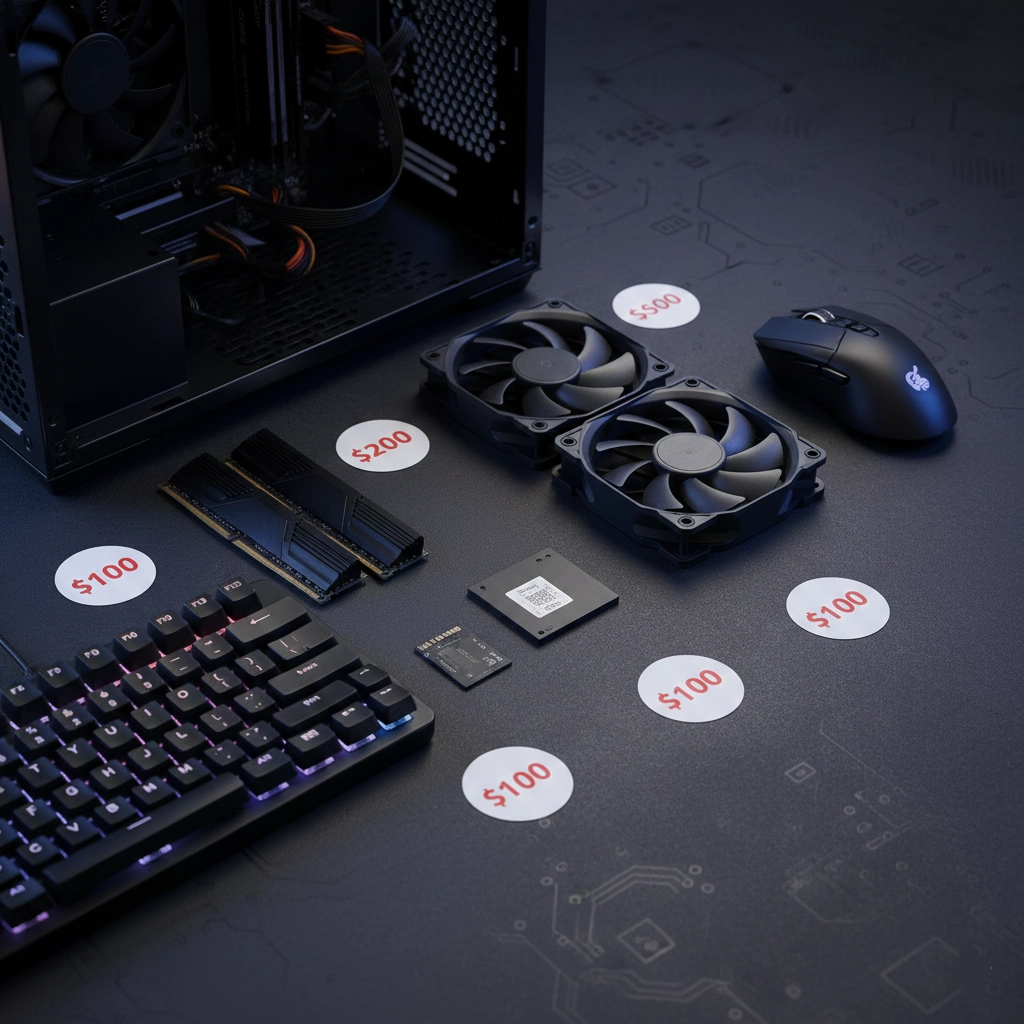
Maximizing Performance on a Budget: Strategic Upgrade Planning
Upgrading your PC doesn't have to break the bank. With careful planning and strategic component selection, you can achieve significant performance improvements for under $100. The key is identifying which upgrades will provide the biggest impact for your specific system and usage patterns, then prioritizing those upgrades based on cost-effectiveness and performance gains.
Budget upgrades are particularly valuable for users with older systems or those looking to extend their PC's useful life without a complete rebuild. By targeting specific bottlenecks and choosing upgrades that complement your existing hardware, you can dramatically improve system responsiveness, gaming performance, and overall user experience without investing in expensive new components.
Upgrade Priority Strategy
When working with a $100 budget, prioritize upgrades that eliminate the most significant bottlenecks in your system. Generally, storage upgrades (SSD) provide the most noticeable improvements for systems still using hard drives. RAM upgrades are next in priority for systems with 8GB or less. Cooling and case fan upgrades can improve system stability and allow better performance from existing components.
Top PC Upgrades Under $100: Performance Impact Analysis
Here are the most effective PC upgrades you can make for under $100, ranked by typical performance impact:
Best Budget Upgrades Under $100
| Product | Feature | Link |
|---|---|---|
| 1. SATA SSD Upgrade ($40-80) | Value: Highest ROI upgrade | Buy SSD |
| 2. RAM Upgrade ($30-70) | Value: Excellent for productivity | Buy RAM |
| 3. Case Fans & Cooling ($20-50) | Value: Improves stability | Buy Fans |
| 4. Peripherals ($30-90) | Value: Quality of life improvement | Buy Peripherals |
SSD Upgrade: The Best $100 Investment
If you're still using a hard drive as your primary storage, upgrading to an SSD is the single most impactful upgrade you can make for under $100. The performance difference is dramatic: boot times can drop from minutes to seconds, applications launch instantly, and overall system responsiveness improves dramatically.
SATA SSD Options ($40-80)
For systems with SATA connections, a 256GB to 512GB SATA SSD provides excellent value. Brands like Crucial, Kingston, and Western Digital offer reliable options in this price range. A 256GB SSD is sufficient for Windows and essential programs, while 512GB provides more comfortable space for games and applications.
Installation and Migration
Installing an SSD typically involves cloning your existing drive or performing a fresh Windows installation. Cloning preserves your current setup but requires cloning software (often free from SSD manufacturers). A fresh installation provides better performance but requires reinstalling programs. Both methods are straightforward, and many SSDs come with migration software.
Expected Performance Improvements
Upgrading from HDD to SSD typically results in boot times dropping from 2-5 minutes to 10-30 seconds. Application launch times improve by 5-10x, file transfers are dramatically faster, and overall system responsiveness becomes noticeably snappier. This upgrade provides the most dramatic user experience improvement of any budget upgrade.
RAM Upgrade: Eliminating Memory Bottlenecks
If your system has 8GB or less RAM, upgrading to 16GB can provide significant performance improvements, especially for multitasking, gaming, and productivity applications. Modern games and applications increasingly require more RAM, and insufficient memory can cause system slowdowns, stuttering, and poor multitasking performance.
DDR4 RAM Options ($30-70)
For systems using DDR4, you can find 8GB kits for around $30-40 or 16GB kits for $50-70. Look for reputable brands like Corsair, G.Skill, or Crucial. Ensure compatibility with your motherboard's supported speeds and form factor (DIMM for desktop, SODIMM for laptops).
DDR3 Systems
Older systems using DDR3 can still benefit from RAM upgrades, though options are more limited. Used DDR3 RAM can be found for $20-40 for 8GB kits. While DDR3 is older technology, upgrading from 4GB to 8GB or 8GB to 16GB still provides noticeable improvements on older systems.
Before purchasing RAM, check your motherboard's specifications to ensure compatibility. Use tools like CPU-Z to identify your current RAM type, speed, and configuration. Mixing different RAM speeds or brands can sometimes cause stability issues, so matching existing RAM specifications is ideal when possible.
Cooling Upgrades: Preventing Thermal Throttling
Inadequate cooling can cause your CPU and GPU to thermal throttle, reducing performance to prevent overheating. Adding case fans or upgrading CPU coolers can improve temperatures, allowing components to maintain higher performance levels and extending component lifespan.
Case Fans ($15-40)
Adding or upgrading case fans improves airflow, reducing temperatures throughout your system. Look for 120mm or 140mm fans with good airflow ratings. Brands like Arctic, Noctua, and be quiet! offer excellent budget options. Two well-placed fans (intake and exhaust) can significantly improve cooling for under $40.
CPU Cooler Upgrade ($25-60)
If you're using a stock CPU cooler, upgrading to an aftermarket air cooler can improve temperatures and reduce noise. Budget options like the Cooler Master Hyper 212 or Arctic Freezer 34 provide excellent cooling for around $30-40, allowing better CPU performance and quieter operation.
Peripheral Upgrades: Quality of Life Improvements
While peripherals don't directly improve PC performance, they significantly enhance user experience. Mechanical keyboards, better mice, and quality mousepads can improve productivity and gaming performance through better responsiveness and comfort.
Mechanical Keyboards ($30-80)
Budget mechanical keyboards from brands like Redragon, Royal Kludge, or Keychron offer excellent value. Look for keyboards with mechanical switches (often clones of Cherry MX switches) that provide better tactile feedback and durability than membrane keyboards. These keyboards can improve typing speed and gaming responsiveness.
Gaming Mice ($20-50)
Upgrading to a quality gaming mouse with better sensors, ergonomics, and programmable buttons can improve gaming performance and productivity. Brands like Logitech, Razer, and Corsair offer budget options with excellent sensors and build quality. Look for mice with high DPI sensors and comfortable ergonomics for your hand size.
Combining Upgrades: Maximum Impact Strategy
If you have exactly $100 to spend, consider combining multiple smaller upgrades for maximum impact. Here are effective upgrade combinations:
$100 Upgrade Combinations
| Product | Feature | Link |
|---|---|---|
| Option 1: Storage Focus | Best For: HDD systems | Shop Combo |
| Option 2: Performance Focus | Best For: RAM-limited systems | Shop Combo |
| Option 3: Gaming Focus | Best For: Gaming setups | Shop Combo |
| Option 4: Balanced | Best For: General use | Shop Combo |
Identifying Your System's Bottlenecks
Before spending your $100 upgrade budget, identify which component is limiting your system's performance. This ensures you get maximum value from your upgrade investment.
Storage Bottleneck Signs
If your system takes several minutes to boot, applications load slowly, or file operations are sluggish, you likely have a storage bottleneck. Upgrading to an SSD will provide the most dramatic improvement. Use Task Manager's Performance tab to monitor disk usage - if it's consistently at 100% during normal use, storage is your bottleneck.
Memory Bottleneck Signs
If your system slows down when running multiple applications, experiences stuttering in games, or shows high memory usage in Task Manager, RAM is likely your bottleneck. Upgrading RAM will improve multitasking and eliminate memory-related performance issues.
Thermal Bottleneck Signs
If your system runs hot, thermal throttles under load, or experiences performance drops during intensive tasks, cooling may be inadequate. Monitor temperatures using tools like HWiNFO or MSI Afterburner. If CPU or GPU temperatures exceed 80-85°C under load, cooling upgrades are needed.
Frequently Asked Questions
What's the best PC upgrade under $100?
For most users, upgrading from a hard drive to an SSD provides the biggest performance improvement for under $100. A 256GB-512GB SATA SSD can dramatically improve boot times, application launch speeds, and overall system responsiveness. If you already have an SSD, upgrading RAM from 8GB to 16GB is typically the next best investment.
Should I upgrade RAM or storage first?
If you're still using a hard drive, upgrade to an SSD first - the performance improvement is more dramatic. If you already have an SSD but only 8GB or less RAM, prioritize RAM upgrades. Use Task Manager to identify which is causing more performance issues: high disk usage indicates storage bottleneck, while high memory usage indicates RAM bottleneck.
Can I upgrade my GPU for under $100?
While new GPUs under $100 are limited, you can find used graphics cards in this price range that provide decent upgrades for older systems. Look for used GTX 1060, RX 580, or similar cards. However, for new components, storage and RAM upgrades typically provide better value under $100 than GPU upgrades.
How much RAM do I need for gaming?
For modern gaming, 16GB RAM is the sweet spot. While 8GB can work for older or less demanding games, many modern titles benefit from 16GB, especially when running background applications. 32GB is overkill for most gamers unless you're also streaming or doing content creation.
Will upgrading cooling improve performance?
Yes, if your system is thermal throttling. When components overheat, they reduce performance to prevent damage. Better cooling allows components to maintain higher performance levels. If your CPU or GPU temperatures exceed 80-85°C under load, cooling upgrades can improve performance by preventing thermal throttling.
Is it worth upgrading peripherals for under $100?
Peripherals don't improve PC performance but significantly enhance user experience. A mechanical keyboard and quality gaming mouse can improve productivity, gaming responsiveness, and comfort. If your system performance is already adequate, peripheral upgrades can be excellent quality-of-life improvements within a $100 budget.
How do I know which upgrade will help most?
Use Task Manager's Performance tab to monitor CPU, Memory, Disk, and GPU usage during your typical tasks. Whichever component consistently runs at 100% is your bottleneck. For storage, slow boot times and application loading indicate HDD bottlenecks. For RAM, system slowdowns during multitasking indicate memory bottlenecks. Use our bottleneck calculator to identify specific component limitations.
Can I combine multiple small upgrades?
Absolutely! Combining multiple smaller upgrades can provide comprehensive improvements. For example, a $40 SSD, $30 RAM upgrade, and $30 in cooling improvements can collectively provide better overall system performance than a single $100 upgrade. This approach is particularly effective when addressing multiple bottlenecks simultaneously.
Tags

Hardware enthusiast and PC build advisor. Alex tests CPUs, GPUs, and memory to help gamers and creators make smarter upgrade decisions.
Follow on Reddit