
Quick answer
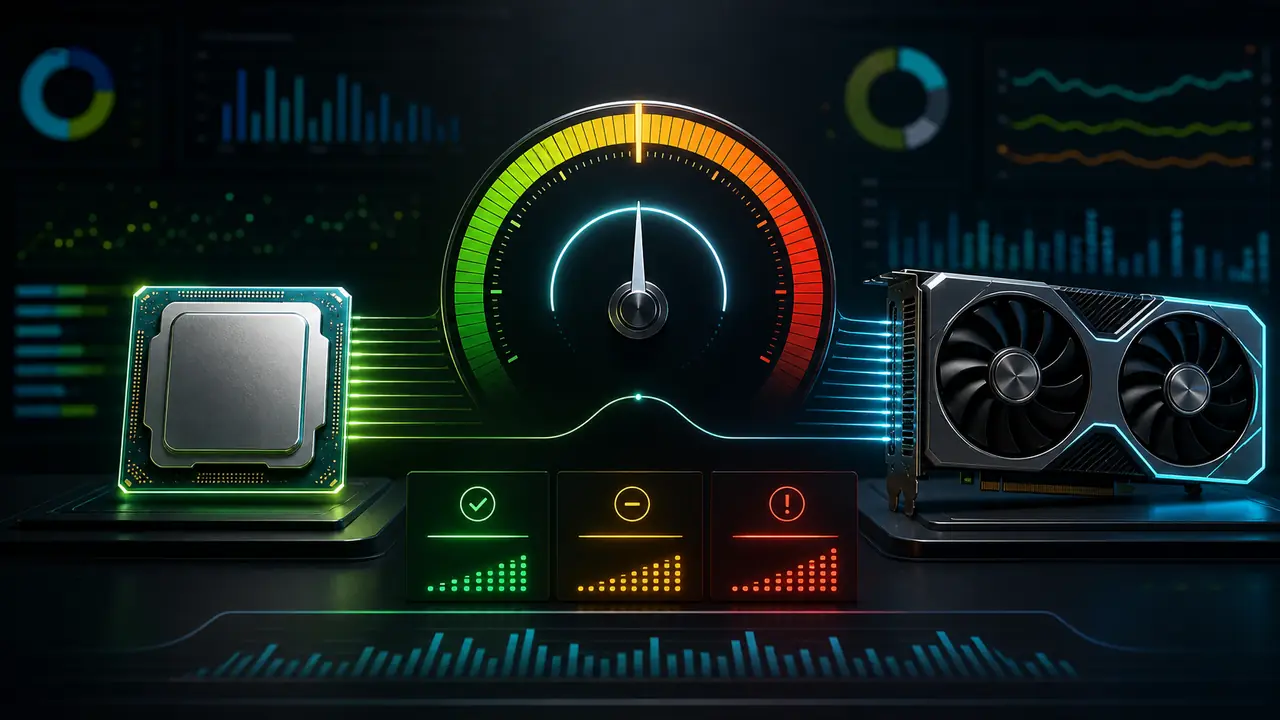
A bottleneck percentage is a warning signal, not a final diagnosis. It tells you that one component may limit another in a given scenario. To read it correctly, combine the percentage with resolution, FPS target, game type, GPU usage, CPU core usage, RAM, temperatures, and frametime.
Use the bottleneck calculator to estimate the issue, then test the same game scene before buying hardware.
Why the percentage changes
The same CPU-GPU pair can show different limits depending on workload. At 1080p high FPS, the CPU has to prepare many frames quickly. At 4K, the GPU spends more time rendering each frame. That is why a combination can look CPU-limited in one scenario and GPU-limited in another.
Graphics settings also matter. Ray tracing, shadows, reflections, render scale, crowd density, and simulation load can shift the limit.
What a high CPU bottleneck means
A high CPU bottleneck estimate means the GPU may wait for the processor in some games. Confirm it by checking:
- GPU usage below expected levels,
- one or more CPU cores near full load,
- little FPS gain when lowering graphics,
- unstable frametime,
- worse 1% lows in busy scenes.
Do not rely on total CPU usage alone. A game can max out a few threads while the total CPU number still looks moderate.
What a high GPU bottleneck means
A high GPU bottleneck estimate usually means the graphics card is the main limit. This is often normal in 1440p and 4K. If GPU usage is 95-100 percent and lowering resolution improves FPS, the GPU is doing the hard work.
That does not always require an upgrade. If the game is smooth and your FPS target is met, the system is doing its job.
When RAM or thermals confuse the result
RAM can create stutter and poor 1% lows even when CPU and GPU look balanced. Single-channel memory, low capacity, disabled XMP/EXPO, or a heavy background workload can make a PC feel worse than the percentage suggests.
Thermals are similar. If CPU or GPU clocks drop under heat, the problem may be cooling, not component pairing.
A better way to decide
Run one test at your normal settings and one test at a lower resolution. If FPS rises strongly, the GPU was likely limiting. If FPS barely changes, the CPU, RAM, or game engine is probably the limit. Record frametime, not only average FPS.
For the bigger picture, read what is a bottleneck calculator and how to reduce bottleneck in games.
FAQ
Is 10 percent bottleneck bad?
Not automatically. It depends on frametime, FPS target, resolution, and whether you notice stutter.
Is zero percent bottleneck possible?
Not in a real system. Every workload has a limiting component somewhere.
Should I trust total CPU usage?
No. Check per-core usage and frametime because many games do not use all cores evenly.
Why does the result change by resolution?
Higher resolution increases GPU load, while lower resolution often exposes CPU limits.
Should I upgrade based on percentage alone?
No. Use the percentage as a starting point and confirm it with real gameplay data.
Tags

Our editorial team checks PC hardware calculations against benchmark data and explains CPU, GPU, RAM, and resolution limits separately.
Editorial methodology