
Quick answer
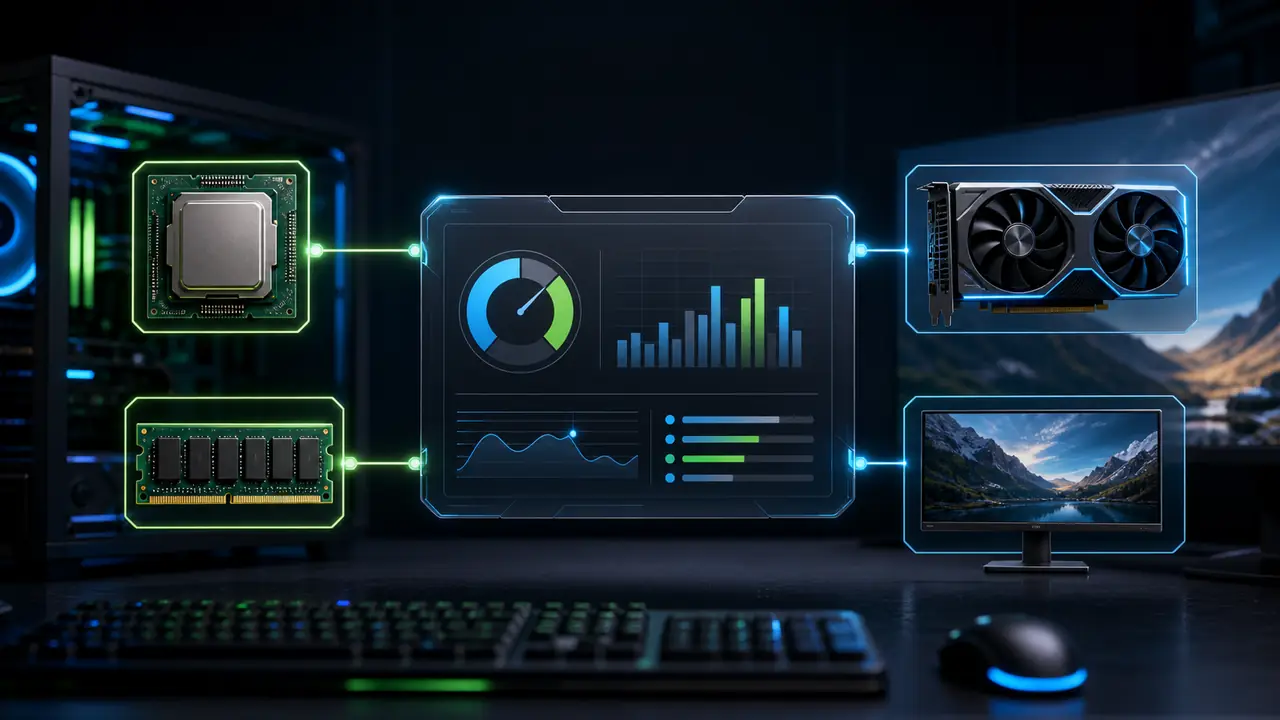
A bottleneck calculator estimates whether your CPU, GPU, or another part of your PC is likely to limit gaming performance. It is useful for planning upgrades, but it should not be treated as a perfect lab result. The right interpretation depends on resolution, FPS target, RAM, thermals, drivers, and the games you actually play.
Start with the bottleneck calculator, then confirm the result with real monitoring data.
What the calculator is trying to estimate
In a gaming PC, the CPU prepares game logic and draw calls while the GPU renders frames. If the CPU cannot prepare frames fast enough, the GPU waits. If the GPU is already fully loaded, a faster CPU may not raise FPS much.
A calculator compares component performance patterns and estimates where the likely limit will appear. The same CPU and GPU can behave differently at 1080p, 1440p, and 4K, because resolution changes how much work the GPU must do.
Why one percentage is not enough
A single bottleneck percentage is easy to read, but it compresses many variables:
- resolution,
- refresh rate,
- game engine,
- RAM capacity and channel mode,
- cooling,
- power limits,
- driver version,
- background tasks,
- graphics settings.
That is why two users with the same CPU and GPU can report different results. A calculator should guide your next test, not replace it.
How to use it correctly
Choose the exact CPU and GPU, then match the resolution you actually use. If you play competitive games at 1080p and 240 Hz, CPU limits matter more. If you play single-player games at 4K, GPU limits are usually expected.
After the estimate, run a repeatable in-game scene. Watch GPU usage, CPU core usage, average FPS, 1% lows, frametime, RAM usage, and temperatures. If changing resolution strongly changes FPS, the GPU was probably limiting. If FPS barely moves, CPU, RAM, or the game engine may be limiting.
What a good calculator should explain
A useful calculator should explain uncertainty. It should not promise exact accuracy or tell every user to buy a new part. It should help you separate likely CPU limits, GPU limits, RAM issues, and settings problems.
Read the methodology to understand what the tool can infer and where real benchmarks still matter.
Next steps
If the result points to CPU limits, read how to read bottleneck percentage and CPU vs GPU bottleneck test. If the result points to memory or stutter, read single-channel vs dual-channel RAM.
FAQ
What is a bottleneck calculator?
It is a tool that estimates which PC component may limit performance in a CPU-GPU configuration.
Is a bottleneck calculator exact?
No. It is an estimate based on component data and assumptions. Real games should confirm the result.
What bottleneck percentage is acceptable?
There is no universal number. A small bottleneck is normal if frametime and FPS meet your target.
Does 4K reduce CPU bottleneck?
It often makes the GPU the main limit, but it does not make a weak CPU stronger.
Should I upgrade immediately after a high result?
No. Check temperatures, RAM, settings, FPS limits, and real usage first.
Tags

Our editorial team checks PC hardware calculations against benchmark data and explains CPU, GPU, RAM, and resolution limits separately.
Editorial methodology